
UPDATED FOR 2026 · WINDOWS 10 & WINDOWS 11
Want to connect to a VPN on your Windows PC without installing a complicated application? In this step-by-step guide, you’ll learn how Windows’ built-in VPN settings work, how to find connection details from a VPN provider, and how to troubleshoot common connection problems.
We’ll also explain an important limitation of the PPTP method demonstrated in the video: it is outdated and should not be relied on to protect sensitive information.
1. What You Need Before Starting
Before configuring a VPN, make sure you have the following:
- A Windows 10 or Windows 11 computer.
- An active internet connection.
- A VPN provider that publishes server addresses and compatible connection settings.
- The correct authentication details for your chosen VPN server.
This guide uses VPNBook as an example because it publishes free VPN connection information. Server availability, supported protocols, and login details can change, so always check the provider’s current information.
Visit the VPNBook free VPN page to review its available connection options.
2. Open the VPN Settings in Windows
Step 1: Open Settings
Click the Windows Start menu and open Settings.
You can also press Windows + I on your keyboard.
Step 2: Open Network & Internet
In the Settings window, select Network & Internet.
Step 3: Select VPN
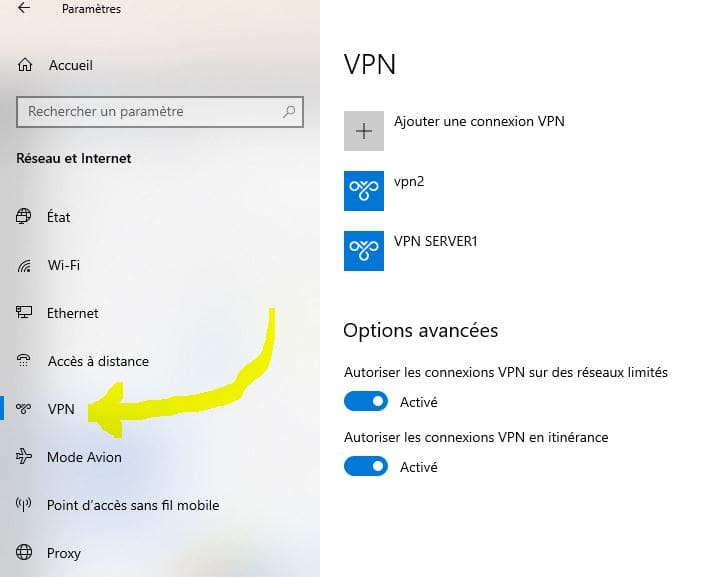
Open the VPN section. This page allows you to add a VPN profile, edit its settings, and connect or disconnect from configured VPN servers.
Microsoft’s official guide provides additional instructions for connecting to a VPN in Windows 10 and Windows 11 .
3. Find Your VPN Server Details
A Windows VPN profile needs a server address and the connection information required by the VPN provider. These details are different for each provider and protocol.
Step 1: Visit the Provider’s Website
Open the provider’s official website and find its free VPN server or configuration page.
Step 2: Choose a Supported Server and Protocol
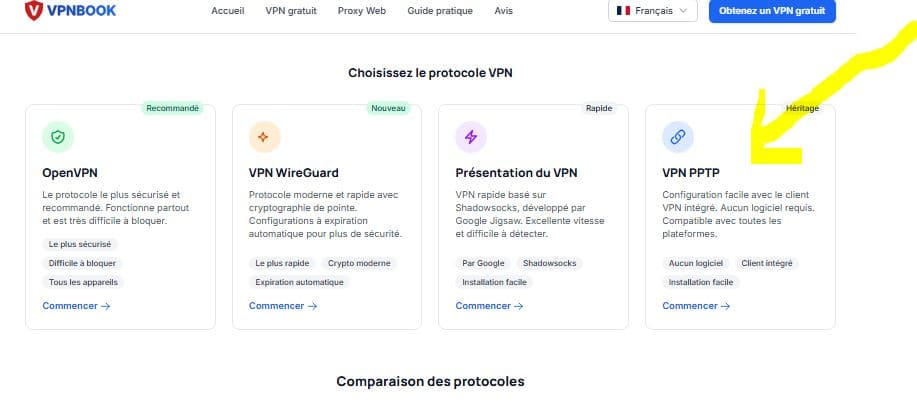
Review the available server locations and supported protocols. Do not assume that every listed server supports every protocol. Choose a protocol that is compatible with your device and supported by the provider.
Step 3: Copy the Current Connection Information
If the provider publishes a server hostname and authentication details, copy them directly from its current configuration page. Do not rely on old screenshots, outdated passwords, or values copied from an old tutorial.
4. Create a VPN Profile in Windows
Once you have the correct server details and a supported configuration, you can create a profile in Windows.
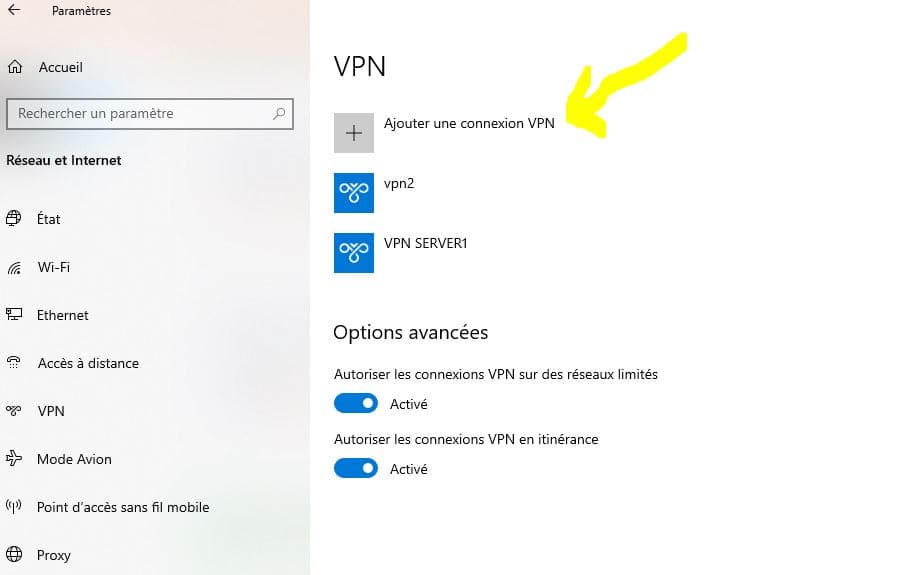
Step 1: Click Add VPN
On the Windows VPN settings page, select Add VPN connection.
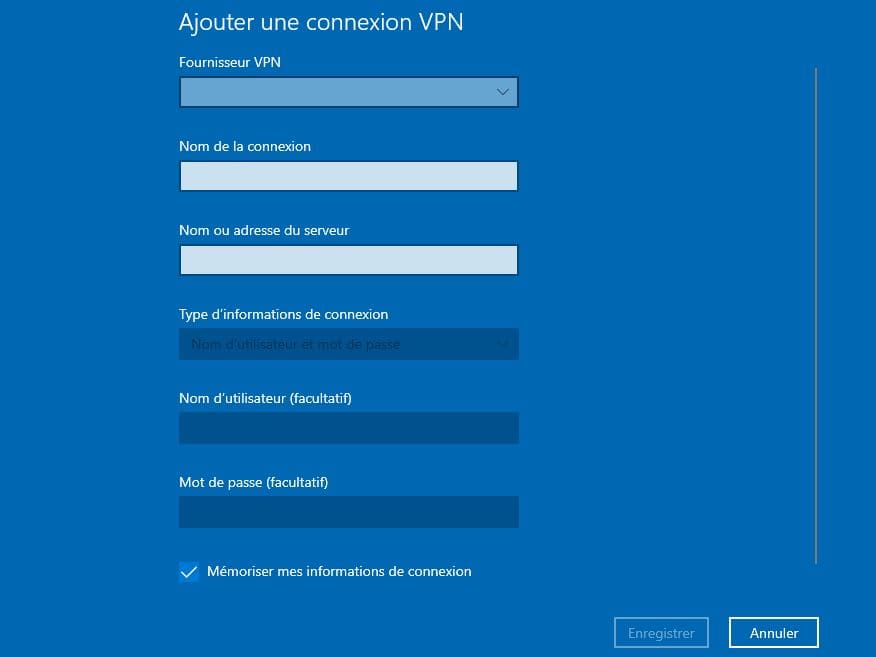
Step 2: Choose the VPN Provider
Under VPN provider, choose Windows (built-in). This uses the VPN client included with Windows.
Step 3: Enter a Connection Name
In the connection name field, enter a label that helps you identify the profile, such as My Free VPN. This is only a label; it is not the server address.
Step 4: Enter the Server Address
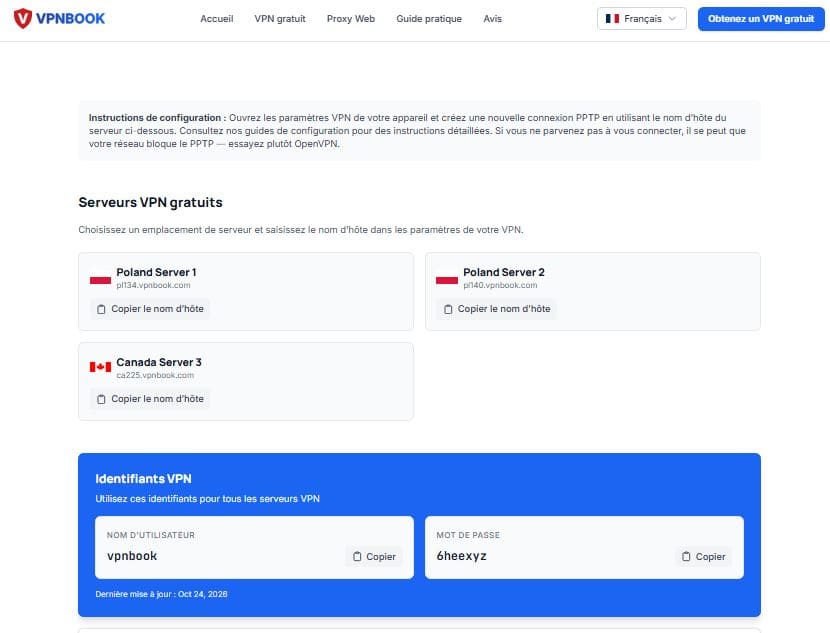
Copy the server hostname supplied by your VPN provider (VPNBOOK.com) into the Server name or address field. Check it carefully for spelling errors.
Step 5: Select the Correct VPN Type
Select a protocol that matches the server configuration. The server and Windows profile must use compatible protocols and authentication settings.
Choose PPTP simply. But It is an obsolete option with serious security weaknesses. Prefer a modern protocol supported by the provider.
Step 6: Enter the Sign-In Information
 Select the sign-in method required by your provider (VPNBOOK.COM). If it
uses a username and password, enter the current credentials
provided through its official configuration page.
Select the sign-in method required by your provider (VPNBOOK.COM). If it
uses a username and password, enter the current credentials
provided through its official configuration page.
Never use credentials copied from an unrelated website or share your personal VPN account password with other people.
Step 7: Save the Profile
Click Save. Your connection should now appear in the Windows VPN settings list.
5. Connect to the VPN
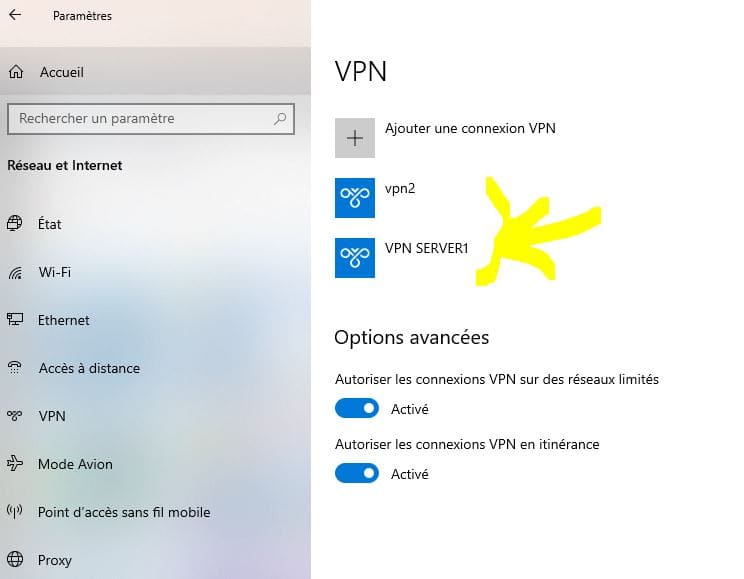
- Open Settings and go to Network & Internet → VPN.
- Find the profile you created.
- Select the profile and click Connect.
- If prompted, enter the required authentication information.
- Wait for Windows to show the connection status.
You can also access the VPN control from the network or Quick Settings area of the taskbar. The exact steps depend on your Windows version.
If the connection fails, do not assume the VPN is active. Check the status in Windows and follow the troubleshooting suggestions below.
6. Check Whether Your VPN Is Connected
Windows should display a connected status for the selected VPN profile. However, a connected status alone does not prove that every application is using the VPN or that your real IP address is hidden in every situation.
- Confirm that Windows shows the VPN as connected.
- Open a reputable IP-checking website in your browser.
- Compare the displayed public IP address and approximate location with your normal connection.
- If the result is unexpected, disconnect and review the VPN configuration.
7. Important: Is the PPTP Method Safe?
The video demonstrates configuring a PPTP connection through Windows’ built-in VPN client. Although Windows supports several VPN connection types, protocol availability does not mean that every protocol offers modern security.
PPTP has known cryptographic weaknesses and is not recommended for protecting sensitive traffic. It should not be treated as a secure privacy solution for banking, private accounts, work data, or other confidential activity.
For a safer setup, check whether your provider offers OpenVPN or WireGuard and follow its official setup guide. These protocols generally require a compatible client or configuration file rather than simply selecting Windows’ built-in VPN option.
Learn more from Microsoft’s documentation on VPN protocols and their security considerations .
8. Troubleshooting Common VPN Problems
Problem 1: Windows Cannot Connect to the VPN
- Check that your normal internet connection works.
- Verify the server address and authentication details against the provider’s current information.
- Check whether the server is online and supports the protocol you selected.
- Try a different supported server or contact the provider.
Problem 2: The Username or Password Is Rejected
Some free VPN services change their shared credentials periodically. Revisit the provider’s official page and check the latest login details. Make sure there are no accidental spaces when copying the information.
Problem 3: The VPN Connects but Websites Do Not Load
- Check the provider’s server status.
- Disconnect and reconnect to the VPN.
- Try another server supported by the same protocol.
- Check whether DNS settings or network restrictions are affecting the connection.
Problem 4: The VPN Disconnects Frequently
Free servers may become overloaded, and some networks restrict certain VPN protocols. Check the provider’s status page and consider a modern protocol supported by the service.
Problem 5: PPTP Is Not Available or Does Not Work
Do not weaken your computer’s security just to force an old protocol to work. Check the provider’s supported alternatives, such as OpenVPN or WireGuard, and use the appropriate official setup instructions.
9. A Safer Alternative: OpenVPN or WireGuard
If your goal is to use a free VPN without relying on PPTP, look for a provider that offers a modern protocol and publishes clear configuration instructions.
Option A: OpenVPN
OpenVPN generally uses a compatible client application and a configuration profile supplied by the provider. Download the client and configuration files only from trusted official sources.
Option B: WireGuard
WireGuard is another modern VPN protocol. To use it, your provider must supply a compatible configuration or account. The Windows client alone does not give you access to a VPN server.
10. When Should You Consider a Premium VPN?
A free VPN can be useful for learning how VPN connections work, but free services may have limited server choices, inconsistent speeds, crowded servers, or fewer support options.
If you need a more consistent connection, modern security features, support for streaming, or a wider choice of servers, compare established VPN services and read their current terms before purchasing a plan.
🔒 Looking for a Premium VPN?

If you want to explore a paid VPN option, you can check the current plans and promotions available from NordVPN. Review the supported devices, features, price, renewal terms, and refund conditions before deciding whether it suits your needs.
Check NordVPN Plans and Offers
Affiliate disclosure: This article contains an affiliate link. We may earn a commission if you purchase through it, at no additional cost to you. Offers, prices, included months, and refund conditions may change. Check the terms displayed on the official website before purchasing.
11. Frequently Asked Questions
Can I set up a VPN on Windows 10 or Windows 11 for free?
Yes. Windows includes a built-in VPN client, but you still need access to a VPN server and the correct configuration details. Some providers offer free services; availability and limitations depend on the provider.
Do I need to install a VPN application?
Not for every VPN connection. Windows’ built-in client can connect to compatible servers using supported protocols. Other services, including many OpenVPN and WireGuard setups, require a compatible client or configuration.
Is VPNBook completely free?
VPNBook advertises free VPN access. Its available servers, connection methods, credentials, and limitations may change. Check the current details on the provider’s website before configuring your connection.
Is PPTP recommended for privacy in 2026?
No. PPTP is an outdated protocol with serious security weaknesses. Choose a modern protocol supported by your provider when you need to protect sensitive information.
Will a VPN make me completely anonymous online?
No. A VPN changes how your traffic is routed and can hide your public IP address from websites, but it does not eliminate tracking, browser fingerprinting, account-based identification, malware, or every possible data leak.
Why does my free VPN stop working?
The server may be busy or offline, credentials may have changed, or your network may restrict the selected protocol. Check the provider’s latest configuration information and troubleshooting guide.
Does Windows 10 still receive security updates?
Standard support for Windows 10 ended on October 14, 2025. Eligible devices may have access to specific extended security update options. Check Microsoft’s current guidance to understand your device’s support status.
Final Thoughts
Setting up a VPN profile in Windows 10 or Windows 11 is straightforward once you have the correct server information and compatible settings. A free service can help you understand how VPN connections work, but it is important to check its security, privacy policy, and limitations.
The video demonstrates a PPTP setup, but PPTP should not be relied on for sensitive activity. For better protection, look for a provider that supports a modern protocol such as OpenVPN or WireGuard.
Did this tutorial help you? Watch the video, leave a comment with your Windows version, and subscribe to the channel for more practical technology tutorials.
🔒 Looking for a Premium VPN?

If you want to explore a paid VPN option, you can check the current plans and promotions available from SurfShark VPN. Review the supported devices, features, price, renewal terms, and refund conditions before deciding whether it suits your needs.
Check SurfShark VPN Plans and Offers
Affiliate disclosure: This article contains an affiliate link. We may earn a commission if you purchase through it, at no additional cost to you. Offers, prices, included months, and refund conditions may change. Check the terms displayed on the official website before purchasing.





Leave a Comment