
Free VPN for PC in 2026: How to Set Up OpenVPN with VPNBook
Want to try a free VPN on your Windows PC or Mac without paying a monthly subscription? In this step-by-step guide, you will learn how to download OpenVPN, import VPNBook configuration files, connect to a server, and troubleshoot common connection problems.
Looking for a free VPN for PC that you can set up without creating a paid subscription? OpenVPN and VPNBook offer one way to experiment with a VPN connection using publicly available configuration files and shared login credentials.
In this guide, I will walk you through the process from beginning to end. You will learn where to find VPNBook’s free server profiles, how to install the official OpenVPN software, how to connect, and what to do if the service stops working.
This article accompanies the video tutorial below. If you prefer watching the process on screen, start with the video and then use the written instructions whenever you need a quick reference.
1. What You Need Before Starting
Before setting up your free VPN, prepare the following:
- A Windows 10 or Windows 11 computer, or a Mac compatible with the OpenVPN client you choose.
- An internet connection.
- The official OpenVPN software or a compatible OpenVPN client.
- A VPNBook configuration profile, usually supplied as an
.ovpnfile. - The current login credentials published on the VPNBook website.
You do not need to purchase a VPN subscription to try the VPNBook free service. However, you should read the current service information and privacy details before using it for sensitive activities.
2. What Are OpenVPN and VPNBook?
What is OpenVPN?
OpenVPN is an open-source VPN technology used to establish encrypted connections between a device and a VPN server. It is available through different client applications, including the OpenVPN Community software for Windows and OpenVPN Connect for supported platforms.
OpenVPN is the software that handles the VPN connection. It does not automatically provide a free VPN server or a subscription by itself. You still need a compatible server and its configuration information.
Official download page: OpenVPN Community Downloads.
What is VPNBook?
VPNBook is a provider that publishes free VPN configuration profiles, including profiles for OpenVPN. Depending on the current offer, its page lists servers in several locations, such as Europe, Canada, and the United States.
The configuration profile tells your OpenVPN client how to reach a particular VPN server. VPNBook also publishes the credentials needed to authenticate with its free service.
Official provider page: VPNBook.com.
Why use both together?
The combination lets you use OpenVPN software with VPNBook’s published server profiles without buying a conventional monthly VPN subscription. It can be useful for learning how VPN connections work or for occasional, non-sensitive browsing.
Keep in mind that the security and privacy of your connection depend on the configuration, the server operator, your device, and the websites or applications you use. OpenVPN’s reputation as a VPN technology does not automatically make every third-party VPN service equally trustworthy.
3. Step 1: Download a VPNBook Configuration File
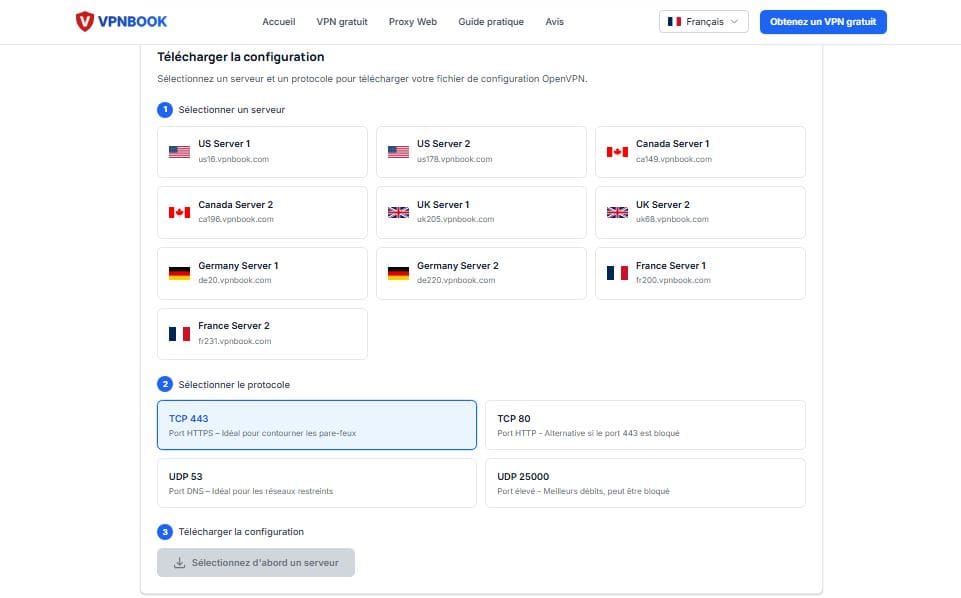
Open the official VPNBook website
Visit the official VPNBook website and locate the section for free OpenVPN profiles. Check the current instructions and available server locations.
Visit VPNBookChoose an available server location
Select a location that suits your needs from the servers currently listed by VPNBook. The available locations and server names may change over time.
A server geographically closer to you may offer lower latency, but actual performance also depends on server load, routing, and your internet connection.
Download the OpenVPN profile
Download the configuration bundle associated with your chosen server. The downloaded archive may contain one or more files ending in .ovpn, along with supporting files.
If the download is compressed, extract it using your operating system’s archive utility. Remember where you saved the extracted files because you will need to import the correct profile into your OpenVPN client.
4. Step 2: Download and Install OpenVPN
Next, install an official OpenVPN client compatible with your operating system. The precise interface depends on whether you choose the Community client or OpenVPN Connect.
For Windows 10 and Windows 11
- Open the official OpenVPN Community Downloads page.
- Choose the appropriate installer for your computer, such as the Windows 64-bit version on a typical modern PC.
- Download the installer and open it.
- Follow the installation instructions shown on your screen.
- If Windows requests permission to install the VPN network driver, verify that you launched the official installer and approve the installation if you trust the source.
- Finish the installation and open the OpenVPN GUI application.
OpenVPN also provides OpenVPN Connect, which has its own import and connection interface. Follow the instructions for the client you actually installed rather than mixing steps from different applications.
For macOS
On a Mac, use a compatible OpenVPN client such as OpenVPN Connect. The Windows OpenVPN GUI tray-icon instructions below do not apply to macOS.
- Visit the official OpenVPN client page.
- Select the macOS download and follow the current installation instructions.
- Open the installed client.
- Locate the option for importing a profile from a file, then select the VPNBook
.ovpnprofile you downloaded. - Enter the credentials requested by the application using the current details published on VPNBook’s official website.
- Connect and review the application’s status to confirm whether the connection succeeded.
The exact menu names may vary between client versions. If an import option is unavailable or a profile is rejected, consult the current documentation for your installed client.
5. Step 3: Configure OpenVPN on Windows
Once OpenVPN Community is installed and the VPNBook configuration file is downloaded, follow these steps to connect on Windows.
Launch OpenVPN GUI
Open the Start menu, search for OpenVPN GUI, and launch the application. Depending on your installation, its icon may appear in the Windows notification area near the clock. You may need to select the small arrow to reveal hidden icons.
Import your VPNBook profile
Use the OpenVPN GUI import option to select the downloaded .ovpn configuration file. The exact menu wording may differ between versions.
If the profile is inside an extracted folder, browse to that folder and select the appropriate file. If the import fails, check whether you extracted the archive correctly and whether the profile is intended for OpenVPN.
Choose the imported server
Open the OpenVPN GUI menu again and select the profile you imported. Start the connection using the application’s Connect option.
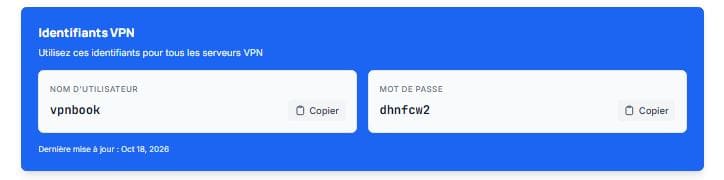
Enter the current VPNBook credentials
When prompted, enter the username and password currently displayed on the official VPNBook page. Do not rely on credentials shown in old videos, screenshots, forum posts, or saved notes.
VPNBook’s free credentials can change periodically. If a previously working password stops working, return to the provider’s website and check the latest details.
Check Current VPNBook CredentialsWait for the connection result
Allow the client time to establish the connection. Read its status and log messages to confirm whether it reports a successful connection. The icon’s appearance can vary depending on the client version.
If the connection fails, do not assume you are protected. Check the troubleshooting section below before continuing to use the internet for activities that require a VPN.
6. How to Set Up VPNBook on a Mac
The setup process on macOS is similar in principle, but the interface differs from the Windows tutorial. Use a compatible OpenVPN client and import the configuration file rather than looking for the Windows system-tray icon.
- Download a client: use the official OpenVPN client page to find the macOS version.
- Install the app: follow the current macOS installation instructions.
- Get a VPNBook profile: download an available OpenVPN configuration from VPNBook.
- Import the file: open the VPN client and choose its profile-import option. Select the relevant
.ovpnfile. - Enter credentials: use the current login details published by VPNBook.
- Connect: start the VPN session and wait for the client to confirm the connection.
- Verify the result: check the client’s status and test your public IP address using a reputable IP-checking website.
If the client cannot import the profile, check the provider’s instructions and the client documentation. Some configuration bundles include several profiles or supporting files, and compatibility can vary by client version.
7. Step 4: Verify Your VPN Connection
Seeing a connected message is a useful first check, but it is worth confirming that your traffic is actually using the VPN.
Check your public IP address
- Before connecting, visit a reputable public IP-checking website and note the public IP address and approximate location it reports.
- Connect to the VPN and wait until the client confirms a successful connection.
- Refresh the IP-checking website.
- Compare the results. A successful VPN connection will generally show the VPN server’s public IP address rather than your normal public IP.
If your public IP does not change, the connection may not be active, the website may be displaying cached information, or your setup may require further troubleshooting. An IP change alone is not proof that every kind of traffic is protected.
Check for DNS leaks
DNS requests help your device find websites. Depending on the configuration, DNS traffic may not follow the route you expect. A reputable DNS leak test can help you check whether DNS requests appear to be associated with your VPN connection or your normal internet provider.
Disconnect when you no longer need the VPN
Use the disconnect option in your VPN client when you want to end the session. If your work requires uninterrupted VPN protection, check the client’s settings and verify that the connection is active before continuing.
8. Common VPNBook and OpenVPN Problems
Free VPN services can occasionally become unavailable or stop accepting a configuration that worked previously. Here are common issues and the first checks to perform.
| Problem | Possible cause | What to try |
|---|---|---|
| Authentication failed | Outdated username or password | Check the current credentials on the official VPNBook website. |
| Connection timed out | Server congestion, outage, or network restriction | Check the provider’s available servers and try again later. |
| Profile import failed | Incorrect file or incomplete extraction | Extract the downloaded archive and choose the correct OpenVPN profile. |
| VPN connects but websites do not load | DNS issue, routing problem, or server fault | Disconnect, review the client logs, and check the provider’s instructions. |
| Slow browsing | Server load, distance, or free-service limits | Try another available server or compare with your normal connection. |
| Connection drops repeatedly | Unstable network or overloaded server | Check your internet connection and review the client’s logs. |
| Windows cannot connect | Client, permissions, or driver issue | Check the official OpenVPN documentation and Windows error messages. |
| macOS cannot import a profile | Unsupported profile format or client mismatch | Confirm compatibility with your installed client and the provider’s instructions. |
Why does the VPNBook password stop working?
VPNBook’s free service uses shared credentials that can be updated. A saved password may therefore become invalid even if the configuration file itself has not changed.
The safest approach is to open the provider’s official website and retrieve the current credentials directly. Avoid websites that promise to provide private or exclusive credentials for a service that publishes its own login information.
Why is the connection slow?
A free server may be shared by many users. Distance, server load, routing, and your local network can all affect speed. A VPN can sometimes reduce your browsing speed because traffic takes an additional route through the VPN server.
There is no reliable way to guarantee a specific speed or uninterrupted service from a free server. If you need consistent performance for work, video calls, or large downloads, compare reputable services and review their current terms.
9. Free VPN vs. Premium VPN: Which Is Better?
A free VPN can be a useful starting point, especially if you want to understand how VPN software works without committing to a subscription. However, free services often have fewer server options and may offer less predictable performance or support.
| Feature | VPNBook free service | Premium VPN service |
|---|---|---|
| Subscription cost | Free for the published free service | Usually requires a paid plan |
| Setup | Manual profile import and shared credentials | Often includes an app with a guided setup |
| Server selection | Limited to currently available free servers | Often provides a broader server network |
| Performance | May vary considerably | Depends on provider, plan, location, and network |
| Customer support | May be limited | Often includes dedicated support |
| Streaming access | Not guaranteed | May work with some services, but access is never guaranteed |
| Privacy | Requires checking the provider’s current policies | Requires checking the provider’s current policies too |
Do not judge a VPN only by whether it is free or paid. Check its privacy policy, logging practices, security features, supported devices, and refund terms. A paid subscription is not automatically proof that a provider is trustworthy.
10. NordVPN: A Premium Alternative to Consider
If your priority is a more convenient app, a wider server network, and features designed for regular VPN use, you may want to compare a premium VPN with the free method described above.
One option to investigate is NordVPN. Its paid service offers dedicated applications and a broader selection of features than a basic manual free-server setup. The right choice depends on your needs, location, budget, and the provider’s current terms.
Looking for a More Convenient VPN Experience?
Check NordVPN’s current plans, available discounts, supported devices, and refund conditions before subscribing.
Check NordVPN’s Current OfferPrices, promotions, extra months, and eligibility can change. Confirm the final offer on the official checkout page.
NordVPN advertises a money-back guarantee for eligible new subscriptions, subject to its current terms and conditions. Read the official NordVPN refund policy before purchasing.
Keep in mind that no VPN can promise complete anonymity or guaranteed access to Netflix and every other streaming platform. Streaming services may block VPN server addresses, and performance can vary.
Affiliate disclosure: This section contains an affiliate link. If you purchase through it, the website owner may earn a commission at no additional cost to you. This does not change the price you pay. Always review the provider’s offer and terms before purchasing.
11. Watch the Video Tutorial: Chapters
- Download a VPNBook OpenVPN configuration profile.
- Install OpenVPN from its official website.
- Import the configuration file into a compatible OpenVPN client.
- Retrieve the current VPNBook username and password from its website.
- Connect and verify that your VPN connection is working.
Important: VPNBook’s available servers, credentials, speed, and service conditions can change. A free VPN is not a guarantee of unlimited bandwidth, complete anonymity, or access to every streaming service.
Use these chapters to jump directly to the part of the video you need.
- 00:00 — Introduction to the free VPN setup
- 00:26 — Downloading free VPNBook server profiles
- 00:55 — Downloading and installing OpenVPN
- 01:26 — Importing the profile and connecting
- 02:09 — What to do if the password changes
Useful Download Links
OpenVPN Community: Download the open-source client from the official project website.
OpenVPN DownloadsVPNBook: Check available free OpenVPN profiles and current login credentials.
VPNBook Official Website12. Frequently Asked Questions
Can I get a free VPN for PC in 2026?
Yes. VPNBook publishes free OpenVPN configurations that can be used with compatible client software. Server availability, performance, and service conditions may change, so check the official provider page before connecting.
Is VPNBook completely free?
VPNBook lists a free VPN service. Check its current website for the terms, available servers, and any restrictions. Free access does not guarantee unlimited speed, uninterrupted uptime, or every feature offered by paid services.
Do I need to create an account to use VPNBook?
The published free OpenVPN service uses shared credentials rather than requiring a conventional personal subscription account. Check VPNBook’s current instructions in case its process changes.
Is OpenVPN available for Windows 11?
Yes. OpenVPN Community provides Windows installers for supported Windows versions, including Windows 10 and Windows 11. Download the installer from the official OpenVPN website.
Can I use VPNBook on macOS?
You can use a compatible OpenVPN client on macOS and import a supported VPNBook profile. The exact steps depend on the client you install, so follow the current macOS instructions rather than the Windows GUI steps.
Why does my VPNBook password no longer work?
The shared credentials may have changed. Visit the official VPNBook website and check the current username and password. Avoid relying on outdated credentials copied from old tutorials.
Does a VPN make me 100% anonymous?
No. A VPN can encrypt traffic between your device and the VPN server, depending on the configuration, and can change the public IP address seen by websites. It does not prevent all tracking, phishing, malware, account identification, or data collection.
Can I use VPNBook to watch Netflix?
Streaming access is not guaranteed. Streaming services may block VPN server addresses, and free VPN performance can vary. Check the relevant service’s terms and choose a provider that meets your needs.
Does VPNBook offer unlimited bandwidth?
Do not assume that a free VPN will always provide unlimited or unrestricted usage. Check the current VPNBook terms and server information. Speeds and availability can also vary even when no explicit data allowance is advertised.
Is a free VPN safe for banking or sensitive accounts?
Be cautious. Before using any VPN for sensitive activity, evaluate the provider’s privacy policy, security practices, and reputation. A VPN does not replace HTTPS, strong unique passwords, multifactor authentication, or safe browsing habits.
What should I do if OpenVPN cannot connect?
Check the current credentials, confirm that you imported the correct profile, check the provider’s server status, and review the OpenVPN log for an error message. Do not disable security features or install unknown certificates just to make the connection work.
Is a premium VPN always better than a free VPN?
Not automatically. A reputable paid service may offer more server choices, support, and convenient applications, but you should compare privacy policies, independent security information, features, and terms before deciding.
Final Thoughts
Setting up a free VPN with OpenVPN and VPNBook can be a useful way to learn about VPN connections without committing to a monthly subscription. The basic process is straightforward: download a configuration profile, install a compatible client, import the profile, enter the current credentials, and verify the connection.
However, remember that free servers can be slow, unavailable, or subject to changing conditions. A VPN does not guarantee complete anonymity, and it should not be treated as a substitute for good online security practices.
If you need a more convenient VPN experience for regular browsing, travel, or other everyday uses, compare reputable premium services and check their current plans and privacy policies before subscribing.
Did this guide help you set up OpenVPN? Watch the video, try the steps, and leave a comment describing your operating system and any error message you encounter. Never share your passwords or other private account information in the comments.
Last reviewed: October 2026. Download links, software interfaces, server availability, login credentials, and promotions may change. Check official provider websites for the latest information.





Leave a Comment