
Forgot your Windows password? Learn how to factory reset your Windows 11 PC directly from the login screen or through Settings with this easy step-by-step guide.
Are you trying to reset your Windows 11 PC but cannot log in? Maybe you forgot your password, your computer is experiencing problems, or you simply want to start fresh.
Good news! Windows 11 includes a built-in recovery feature that allows you to reset your computer without signing in to your Windows account, provided the recovery environment is available and no additional recovery protection blocks access.
In this guide, I’ll show you how to reset your PC Windows 11 without a password using two simple methods. You will also learn the difference between keeping your files and removing everything.
1. What to Do Before Resetting Windows 11
Before starting the factory reset, take a moment to prepare your computer:
- Back up your files: Save important documents, photos, and videos to an external drive or cloud storage.
- Connect your laptop to power: The reset process can take some time.
- Check your internet connection: Cloud download requires an internet connection.
- Prepare your BitLocker recovery key: Windows may request it if your drive is encrypted.
- Choose the right reset option: Decide whether you want to keep your files or remove everything.
2. Method 1: How to Reset Windows 11 Without a Password
This method is useful if you forgot your Windows password or cannot access your account. You can open the Windows Recovery Environment (WinRE) directly from the login screen.
Open the Windows 11 Login Screen
Start your computer and wait until the Windows login screen appears. You do not need to enter your password.
Enter Windows Recovery Mode
Look at the bottom-right corner of the login screen.
- Click the Power icon.
- Press and hold the Shift key.
- While holding Shift, click Restart.
- Keep holding Shift while the computer begins restarting.
Your PC should open the Windows Recovery Environment.
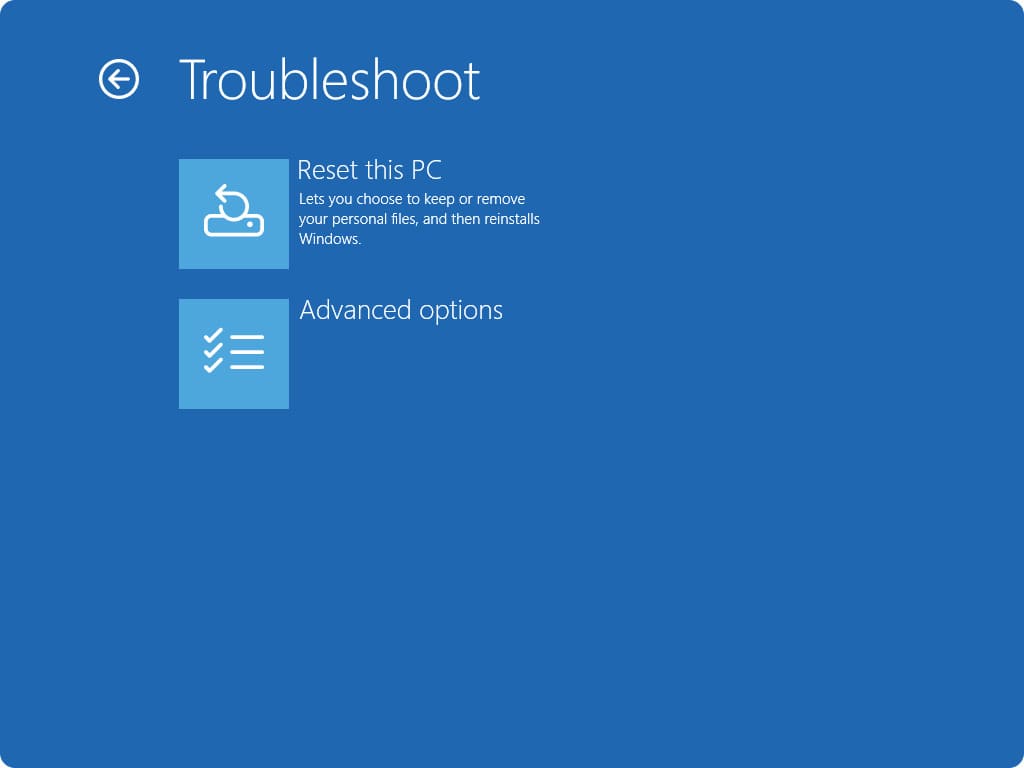
Select Troubleshoot
When the recovery menu appears:
- Click Troubleshoot.
- Select Reset this PC.
Windows will display the available reset options.
Choose Your Reset Option
You will see two choices: Keep my files and Remove everything.
For a complete reset, select Remove everything. Remember that this option removes personal files, applications, and settings.
Choose How to Reinstall Windows
Windows will ask how you want to reinstall the operating system.
- Cloud download: Downloads a fresh copy of Windows from Microsoft. An internet connection is required.
- Local reinstall: Uses the Windows installation files already stored on your PC.
If your internet connection is slow, Local reinstall may be more convenient. If local recovery files are damaged, Cloud download may be a better choice.
Choose the Data Removal Option
Depending on your reset settings, Windows may offer additional data-cleaning choices.
- Just remove my files: A faster option when you are keeping your computer.
- Fully clean the drive: Takes longer and makes previously stored data harder to recover. More appropriate when transferring ownership.
Start the Reset Process
Review the reset summary carefully. When you are ready, click Reset.
Your PC will restart and begin reinstalling Windows 11. It may restart several times. This is normal.
3. Keep My Files vs. Remove Everything
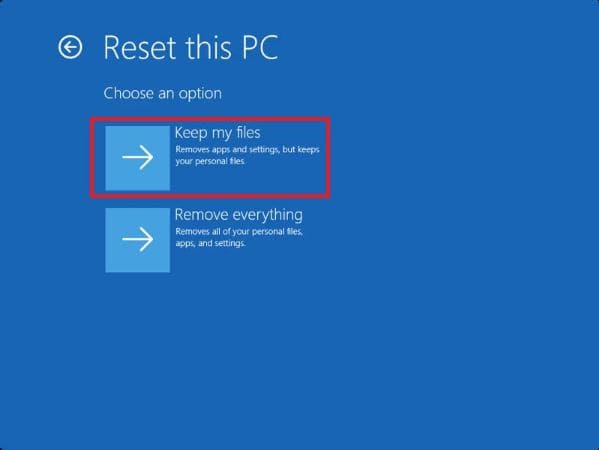
Not sure which option to choose? Here is a simple comparison:
| Reset option | What happens | Best for |
|---|---|---|
| Keep my files | Keeps personal files but removes apps and resets settings. | Fixing Windows problems. |
| Remove everything | Removes personal files, apps, and settings. | Starting fresh or preparing a PC for another owner. |
4. Cloud Download vs. Local Reinstall
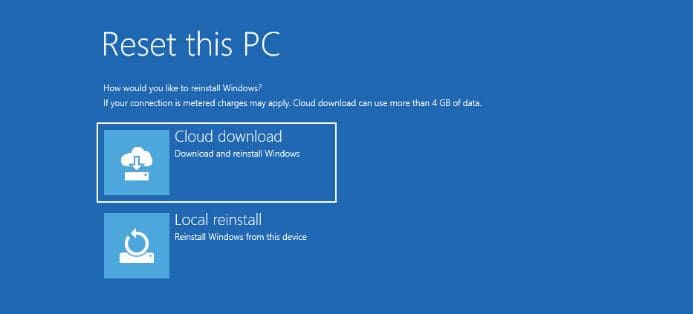
Windows 11 provides two ways to reinstall the operating system.
| Feature | Cloud download | Local reinstall |
|---|---|---|
| Internet required | Yes | Usually no |
| Downloads Windows files | Yes | No |
| Uses local recovery files | No | Yes |
| Best for | Damaged local recovery files | Limited internet connection |
Choose Cloud download if you want Windows to download fresh installation files. Choose Local reinstall if you prefer to use files already available on your PC.
5. Method 2: How to Reset Windows 11 from Settings
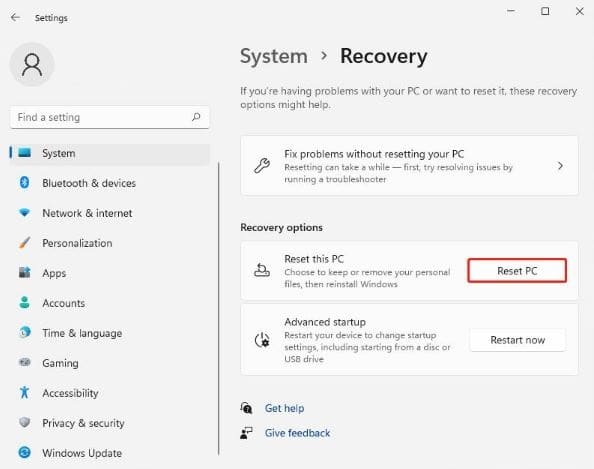
If you can access your Windows 11 desktop, you can reset your PC directly from Settings.
Open Windows Settings
Click the Start button, open Settings, then select System.
Open Recovery Settings
Scroll down the System settings page and click Recovery.
Click Reset This PC
Find the Reset this PC section and click Reset PC.
Choose Your Reset Option
Select Keep my files or Remove everything, depending on your needs.
Choose the Reinstallation Method
Select Cloud download or Local reinstall and review the explanation shown by Windows.
Review and Start
Check the reset summary carefully. If everything is correct, click Reset to begin.
6. How to Set Up Windows 11 After the Reset
After the reset is complete, Windows 11 will display the initial setup screen. Follow these steps to configure your computer:
Select Your Country or Region
Choose your country or region and click Yes.
Select Your Keyboard Layout
Choose your preferred keyboard layout, such as US or UK. You can add another layout or skip it.
Connect to the Internet
Select your Wi-Fi network or connect an Ethernet cable. Some setup steps may require an internet connection.
Complete the Windows Setup
Follow the on-screen instructions and accept the applicable terms.
Choose Your PC Setup
If prompted, select the setup option that matches your situation, such as Set up for personal use.
Sign In with a Microsoft Account
Sign in with your Microsoft account or follow the available account setup options. The choices may vary depending on your Windows edition and region.
Create a PIN
Windows may ask you to create a PIN. Choose one that is difficult for other people to guess.
Review Privacy Settings
Review the privacy and personalization options and enable only the features you want to use.
Finish the Setup
Wait for Windows to complete the configuration. Once you reach the desktop, install updates, reinstall your applications, and restore your backed-up files.
7. Method 3: Reset Windows 11 Using a Bootable USB Drive
If neither of the two methods above works, don’t worry. There is another solution: you can create a bootable Windows 11 USB drive and use it to reinstall Windows on your computer.
This method is especially useful if:
- Windows Recovery Environment is not working.
- Reset this PC fails or displays an error.
- Windows installation or recovery files are damaged.
- Your computer cannot start Windows normally.
Prepare a USB Flash Drive
You will need a USB flash drive with at least 8 GB of storage. Creating the installation media will erase the existing contents of the USB drive, so save any important files before using it.
Download the Official Windows 11 Media Creation Tool
Visit Microsoft’s official Windows 11 download page and download the Media Creation Tool.
Use the tool to create Windows 11 installation media on your USB flash drive.
Download Windows 11 – MicrosoftStart Your PC from the USB Drive
Once the installation USB is ready, connect it to the computer you want to reinstall Windows on.
Restart the computer and open its boot menu or firmware boot settings. The key used to access this menu depends on your computer manufacturer. Select the USB installation drive.
Start Windows 11 Setup
When the Windows Setup screen appears, select your language and keyboard preferences, then continue with the installation.
Follow the on-screen instructions carefully and review the available installation options before making any changes to your drives or partitions.
Complete the Windows Installation
Follow the setup instructions to install Windows 11. After installation, complete the initial Windows configuration, install updates, and restore your backed-up files.
I’ve also created a separate step-by-step guide showing how to create a bootable Windows 11 USB drive.
Watch: How to Create a Bootable Windows 11 USB Watch: Create a Bootable USB Windows 11 with Rufus tool8. Common Windows 11 Reset Problems and How to Fix Them
Problem 1: Shift + Restart Does Not Open Recovery Mode
Make sure you are holding Shift while clicking Restart from the login screen. If it still does not work, use official Windows recovery or installation media.
Problem 2: Windows Asks for a BitLocker Recovery Key
Some computers use BitLocker encryption. If recovery asks for a key, you must provide the correct recovery key to access the protected drive.
You can check your Microsoft account’s recovery-key page here:
Find your BitLocker recovery key – Microsoft
Problem 3: Reset This PC Is Not Working
- Restart your PC and try again.
- Try Cloud download if Local reinstall fails and you have a reliable internet connection.
- Check whether your computer manufacturer provides a recovery option.
- If necessary, use official Windows installation media.
Problem 4: Windows 11 Reset Is Taking Too Long
The reset time depends on your hardware, storage drive, and selected options. Keep the device connected to power and allow the process to finish. Avoid forcing a shutdown unless the computer is clearly unresponsive.
Problem 5: My Files Are Missing After Reset
If you selected Remove everything, your personal files may have been deleted. This is why backing up your data before resetting is important. If you selected Keep my files, check your user folders and available backups.
9. Frequently Asked Questions
Can I factory reset Windows 11 without a password?
Yes. You can usually open Windows Recovery Environment from the login screen using Shift + Restart, then select Troubleshoot and Reset this PC. Some devices may require a BitLocker recovery key or additional recovery credentials.
How do I reset my Windows 11 PC from the login screen?
At the login screen, click the Power icon while holding Shift, then click Restart. When the recovery menu appears, select Troubleshoot and Reset this PC.
Will resetting Windows 11 delete everything?
It depends on the option you choose. Keep my files preserves personal files but removes apps and settings. Remove everything removes personal files, applications, and settings.
How long does a Windows 11 factory reset take?
The time varies depending on your computer, storage drive, internet connection, and selected reset options. Some resets finish relatively quickly, while others take considerably longer.
Is Cloud download better than Local reinstall?
Cloud download obtains fresh installation files from Microsoft and can help if local recovery files are damaged. Local reinstall uses files already stored on your PC and usually does not require an internet connection.
Can I reset Windows 11 without a USB drive?
Yes. If Windows Recovery Environment is available, you can usually reset your PC without a USB drive. A USB installation drive is an alternative if built-in recovery options are unavailable or not working.
Should I choose Keep my files or Remove everything?
Choose Keep my files if you want to reinstall Windows while preserving personal files. Choose Remove everything if you want to erase your personal files and start fresh or prepare the computer for another owner.
Final Thoughts
Resetting your Windows 11 PC is easier than you might think. If you forgot your password or cannot access your Windows account, you can often use the recovery menu from the login screen to reset your computer without signing in.
If you can access your desktop, the Settings method is another simple option.
Before starting, remember to back up important files and carefully review the reset options. Once Windows 11 is reinstalled, complete the setup, install updates, and restore your files.
Watch the complete video tutorial:
How to Reset Your PC Windows 11 Without a Password
Leave a comment below and let us know which method worked for you. If you found this tutorial useful, share it with someone who needs help resetting a Windows 11 computer.
Watch the complete video tutorial:
How to Reset Your PC Windows 11 Without a Password




Leave a Comment